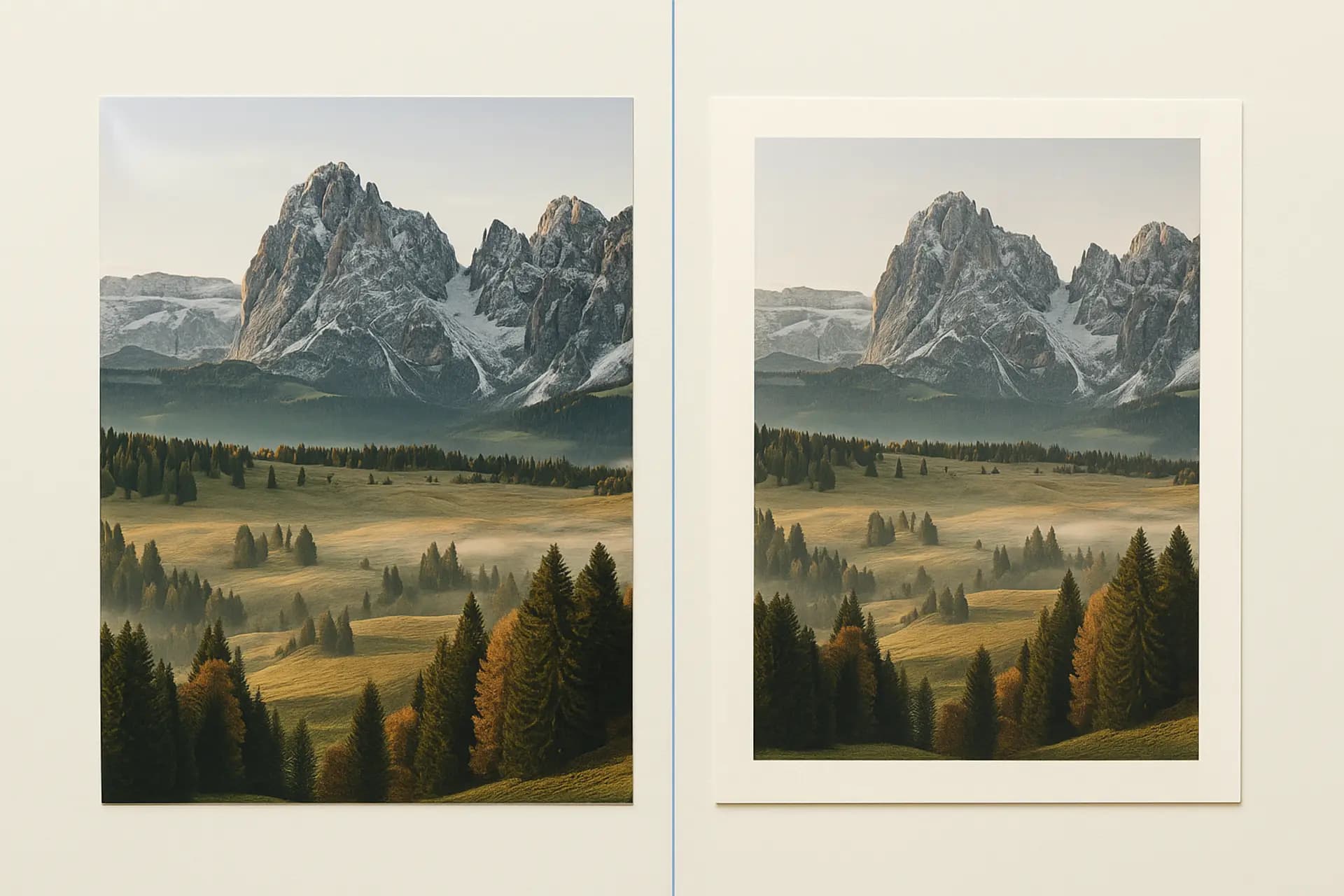
Short answer: use WebP for images shown on a website. Keep PNG for files you will edit again, send by email, or need at 16 bits per channel.
| PNG | WebP | |
|---|---|---|
| File size (our 5-image test below) | Baseline | 30–33% smaller lossless; 71–96% smaller at quality 80 |
| Quality modes | Lossless only | Lossless or lossy |
| Transparency | 8-bit alpha channel | Alpha in both modes |
| Animation | Only via APNG, patchy support | Built in |
| Colour depth | Up to 16 bits per channel | 8 bits per channel |
| Browser support | Every browser | About 97% (not IE 11 or old Safari) |
| Email clients, older apps and CMSs | Accepted everywhere | Some still reject it |
| Best for | Source and editing files, print, 16-bit work | Images delivered on web pages |
The rest of this guide shows where those numbers come from.
Choosing the right image format is the first decision you make in any image optimization workflow, and it has a bigger impact on file size than any quality slider or compression setting. Pick the wrong format and you are leaving 30–70% of potential savings on the table before you even start compressing.
The two formats that come up most often in this decision are PNG and WebP. PNG has been the go-to choice for lossless graphics on the web since the late 1990s. WebP, developed by Google and released in 2010, was designed specifically to replace both JPEG and PNG with better compression across the board. Fifteen years later, WebP has matured into a format with near-universal browser support and measurably smaller file sizes.
But "WebP is smaller" does not mean "always use WebP." There are legitimate scenarios where PNG remains the better choice, and understanding when to use each format saves you time and avoids compatibility headaches.
This guide compares PNG and WebP across every dimension that matters — compression efficiency, feature support, browser compatibility, and real-world performance — with actual conversion data from five common image types. By the end, you will have a clear decision framework for choosing between these two formats.
Understanding PNG: The Lossless Standard
PNG (Portable Network Graphics) was created in 1996 as a patent-free replacement for GIF. The format is defined by the W3C PNG Specification (ISO/IEC 15948), and it has been a web standard for nearly three decades.
How PNG Compression Works
PNG uses a two-stage lossless compression pipeline. First, each row of pixels is passed through a prediction filter that encodes differences between neighboring pixels. PNG supports five filter types (None, Sub, Up, Average, Paeth), and the encoder selects the best filter per row. Second, the filtered data is compressed using the DEFLATE algorithm (LZ77 + Huffman coding) — the same algorithm used in ZIP files and gzip.
Because both stages are lossless, the decompressed image is bit-for-bit identical to the original. No pixel data is ever discarded.
PNG Strengths
- Perfect lossless quality — Every pixel is preserved exactly as the original, making PNG ideal for images that will be edited later or require pixel-perfect accuracy.
- Full alpha transparency — PNG supports an 8-bit alpha channel with 256 levels of transparency per pixel, essential for logos, icons, and UI elements.
- Wide color depth — Supports up to 16 bits per channel (48-bit color) for workflows requiring extended dynamic range.
- Universal support — Every browser, image editor, operating system, and CMS handles PNG without configuration.
PNG Limitations
- Large file sizes for photographs — Lossless compression simply cannot compete with lossy methods for photographic content. A PNG photograph is typically 3–10× larger than a JPEG or WebP equivalent at visually comparable quality.
- No native animation — The base PNG specification does not support animation. APNG (Animated PNG) exists as an extension, but it has inconsistent support and is rarely used compared to GIF or WebP animation.
- No lossy mode — PNG is lossless only. You cannot trade quality for smaller files within the format itself. Tools like pngquant can apply lossy quantization before PNG encoding, but this is a preprocessing step, not a native PNG feature.
Understanding WebP: Google's Modern Alternative
WebP was developed by Google and first released in 2010. It is based on the VP8 video codec (for lossy compression) and a separate lossless compression algorithm. The format is documented in the Google WebP developer documentation and the WebP Container Specification.
How WebP Compression Works
WebP operates in two distinct modes:
Lossy mode uses techniques derived from VP8 intra-frame coding with adaptive block sizes (4×4 and 16×16), advanced spatial prediction, and boolean arithmetic coding. According to the Google WebP documentation, lossy WebP achieves 25–34% smaller file sizes compared to JPEG at equivalent SSIM quality scores.
Lossless mode uses spatial prediction with 13 modes, color space transforms, backward reference search, and custom entropy coding. Google's own benchmarks show lossless WebP files are 26% smaller than PNG files on average, measured across a corpus of approximately 12,000 web images.
WebP Strengths
- Superior compression — WebP produces smaller files than both JPEG (lossy) and PNG (lossless) at equivalent visual quality, typically 25–35% savings.
- Transparency support — Both lossy and lossless WebP support alpha channels. Lossy WebP with alpha is often 60–80% smaller than the equivalent PNG.
- Animation support — WebP supports animation natively with VP8 inter-frame compression, offering a modern alternative to GIF with full color support.
- Near-universal browser support — According to Can I Use data as of early 2025, WebP is supported by approximately 97% of browsers globally, including all current versions of Chrome, Firefox, Safari, Edge, and Opera.
WebP Limitations
- Not truly universal — The 3% gap in browser support can matter if your audience includes users on older devices. Check your analytics before going WebP-only.
- Slower encoding — WebP encoding is more expensive than JPEG, though the difference is typically under a second per image on modern hardware.
- Limited native app support — Some desktop applications and legacy CMS platforms may not handle WebP natively, though this is improving rapidly.
- Lossy quality ceiling — At very high quality settings (95+), lossy WebP can sometimes produce slightly larger files than JPEG.
Compression Comparison: PNG vs WebP Across Five Image Types
Theory is useful, but real numbers are what matter when you are making format decisions. We converted five common image types from PNG to WebP (lossless) and WebP (lossy at quality 80) to measure the actual file size differences.
Test Methodology
- Source images: Five images representing the most common types found on websites — a company logo, a desktop screenshot, a product photograph, a UI icon set, and a marketing graphic with text overlays.
- Original format: All source images were saved as PNG-24 with maximum compression (level 9) using standard tools.
- Conversion tool: ImgCompress.app format converter, running client-side in Chrome 122 on a MacBook Pro (M2, 16 GB RAM).
- WebP lossless: Converted using WebP lossless mode for bit-perfect quality preservation.
- WebP lossy: Converted using WebP lossy mode at quality 80, which provides a good balance of size and visual fidelity.
- Quality verification: All lossless conversions were verified to be pixel-identical to the PNG source. Lossy conversions were inspected at 100% zoom for visible artifacts.
Results
| Image Type | Dimensions | PNG Size | WebP Lossless | Savings | WebP Lossy (Q80) | Savings |
|---|---|---|---|---|---|---|
| Company logo | 800×400 | 42 KB | 28 KB | 33% | 12 KB | 71% |
| Desktop screenshot | 1920×1080 | 1,850 KB | 1,280 KB | 31% | 185 KB | 90% |
| Product photograph | 2400×2400 | 8,200 KB | 5,740 KB | 30% | 320 KB | 96% |
| UI icon set | 512×512 | 85 KB | 58 KB | 32% | 24 KB | 72% |
| Marketing graphic | 1200×628 | 680 KB | 465 KB | 32% | 95 KB | 86% |
What the Data Tells Us
WebP lossless consistently saves 30–33% compared to PNG. This is remarkably consistent across all five image types, from small icons to large screenshots. The savings come entirely from WebP's more efficient lossless compression algorithm — no quality is lost, and the images are pixel-identical to the PNG originals.
WebP lossy delivers dramatic savings for photographic content. The product photograph dropped from 8.2 MB (PNG) to just 320 KB (lossy WebP at Q80) — a 96% reduction. Even the desktop screenshot, which contains sharp text and UI elements that are typically harder to compress with lossy methods, achieved a 90% reduction with no visible text degradation at normal viewing distance.
Logos and icons see the smallest lossy savings but still benefit significantly. The company logo went from 42 KB to 12 KB (71% reduction), and the icon set from 85 KB to 24 KB (72% reduction). These images have large areas of solid color and sharp edges that compress well even in PNG, but WebP lossy still cuts the file size by more than two-thirds.
The lossless-to-lossy gap varies by content type. For the product photograph, the difference between lossless WebP (5.7 MB) and lossy WebP (320 KB) is enormous — lossy is 18× smaller. For the logo, the gap is much smaller (28 KB vs 12 KB, about 2.3×). This reflects the fundamental nature of lossy compression: it excels at photographic content with smooth gradients and fine detail, and offers less dramatic gains on graphics with solid colors and sharp edges.
Browser Compatibility: Where Things Stand in 2025
Browser support is often the deciding factor in format adoption. Here is the current state of WebP and PNG compatibility:
PNG Browser Support
PNG has been universally supported since the early 2000s. Every browser, every version, every platform handles PNG correctly. There is nothing more to say — if you serve a PNG, it will render everywhere.
WebP Browser Support
According to Can I Use data as of January 2025, WebP enjoys approximately 97% global browser support:
- Chrome: Full support since version 32 (2014)
- Firefox: Full support since version 65 (2019)
- Safari: Full support since version 16 (2022) on macOS, iOS 14+ (2020) on mobile
- Edge: Full support since version 18 (2018)
- Opera: Full support since version 19 (2014)
The remaining ~3% comes primarily from Internet Explorer 11 (end of life June 2022), older Safari versions on macOS Catalina and earlier, and niche mobile browsers.
Practical Compatibility Strategy
For most websites in 2025, WebP can be served as the primary format without a fallback. The 97% support threshold means the vast majority of your visitors will see the WebP version. However, if your analytics show meaningful traffic from older browsers, you can use the HTML <picture> element to serve WebP with a PNG fallback:
<picture>
  <source srcset="image.webp" type="image/webp" />
  <img src="image.png" alt="Description of the image" />
</picture>
This approach delivers the smaller WebP file to browsers that support it and falls back to PNG for the rest. The browser handles the format selection automatically — no JavaScript required.
For a broader look at format selection including AVIF, see our Image Format Conversion Guide.
Tutorial: Converting PNG to WebP with ImgCompress.app
Let us walk through the actual process of converting PNG images to WebP using ImgCompress.app, so you can see the workflow and results firsthand.
Step-by-Step Conversion Process
-
Open our image converter in your browser. All processing runs locally — your images never leave your device.
-
Drag and drop your PNG files onto the upload area, or click to browse. You can upload multiple files at once for batch conversion.
-
Select WebP as the target format from the output format dropdown.
-
Choose your compression mode:
- Lossless if you need pixel-perfect quality (logos, icons, screenshots that will be edited later)
- Lossy with a quality setting of 75–85 for photographs and complex graphics where some quality trade-off is acceptable
-
Click convert and wait a few seconds. The converter processes each image client-side using the Canvas API and Web Workers for optimal performance.
-
Preview the results. For lossy conversions, use the before-and-after comparison to verify that the quality meets your standards. Pay attention to edges around transparent areas, text sharpness, and gradient smoothness.
-
Download the converted files individually or as a ZIP archive.
Conversion Tips
- Start with lossless for graphics. If your PNG contains logos, icons, or UI elements, try lossless WebP first. You will get a 30% size reduction with zero quality compromise. Only switch to lossy if you need even smaller files and can accept minor quality trade-offs.
- Use quality 80 for photographs. If your PNG is a photograph (perhaps exported from a design tool as PNG to preserve quality during editing), lossy WebP at quality 80 will give you dramatic file size savings with no visible quality loss at web display sizes.
- Preserve transparency. WebP supports alpha transparency in both lossy and lossless modes. When converting PNG files with transparent backgrounds, the transparency is preserved automatically — no special settings needed.
- Batch convert for efficiency. If you have a folder of PNG assets to convert, upload them all at once. ImgCompress.app processes them in parallel and lets you download everything as a single ZIP file.
For more details on converting between all supported formats, see our complete format conversion guide.
Decision Flowchart: When to Use PNG vs WebP
Choosing between PNG and WebP comes down to a few key questions about your specific use case. Here is a practical decision framework:
Use PNG When:
- You need guaranteed universal compatibility — including legacy systems, email clients, and older native apps.
- You are creating source files for further editing — PNG's lossless compression makes it ideal as an intermediate format in design workflows.
- You need 16-bit color depth — PNG supports 16 bits per channel (48-bit color), which matters for scientific and medical imaging. WebP is limited to 8 bits per channel.
- Your platform does not support WebP — Some older CMS platforms and email marketing tools still do not accept WebP files.
Use WebP When:
- You are optimizing for web delivery — WebP is the better default in 2025 with 97% browser support.
- You want smaller files without losing quality — Lossless WebP is 26–33% smaller than PNG with identical visual output.
- You need transparency with small file sizes — Lossy WebP with alpha gives you transparent images at a fraction of the PNG file size.
- You are building a performance-focused site — Switching from PNG to WebP is one of the highest-impact optimizations you can make for page speed and Core Web Vitals.
The Hybrid Approach
In practice, many teams use both formats:
- PNG as the source and archival format in their asset pipeline
- WebP as the delivery format served to browsers
- PNG fallback via the
<picture>element for the small percentage of browsers that do not support WebP
This gives you the best of both worlds: lossless source files for editing and maximum compression for delivery. Our Ultimate Image Compression Guide covers this multi-format strategy in more detail.
Advanced Considerations
WebP Lossless vs PNG: When PNG Actually Wins
While WebP lossless is smaller than PNG in the vast majority of cases, there are edge cases where PNG can match or beat WebP:
- Very small images (under 1 KB) where the WebP container overhead makes files slightly larger.
- Images with very few colors where PNG's palette mode (PNG-8) is extremely efficient.
- Already heavily optimized PNGs processed through tools like zopfli, which narrows the gap significantly.
These edge cases are uncommon enough that "use WebP lossless instead of PNG" remains a solid general rule.
AVIF: The Next Step Beyond WebP
If you are already using WebP and want even better compression, AVIF is worth evaluating. Based on the AV1 video codec developed by the Alliance for Open Media, AVIF typically achieves 20–30% smaller files than WebP at equivalent quality. Browser support is at approximately 93% globally and growing. The trade-off is slower encoding speed and slightly lower compatibility. For a detailed comparison, see our AVIF Format Deep Dive.
Conclusion
The PNG vs WebP decision in 2025 is straightforward for most use cases. WebP delivers 26–33% smaller files in lossless mode and dramatically smaller files in lossy mode, with 97% global browser support. For web delivery, WebP is the better default.
PNG remains essential as a source format, for workflows requiring 16-bit color depth, and in environments where universal compatibility is non-negotiable. The two formats complement each other rather than compete — PNG for creation and archival, WebP for delivery and performance.
The compression data speaks for itself: across five common image types, WebP lossless saved 30–33% compared to PNG with zero quality loss. Lossy WebP at quality 80 saved 71–96% depending on the content type. Those are not marginal gains — they translate directly into faster page loads, lower bandwidth costs, and better user experience.
Ready to convert your PNG images to WebP? Try our free format converter — it runs entirely in your browser, supports batch conversion, preserves transparency, and lets you compare results side by side before downloading.
Related reading: